
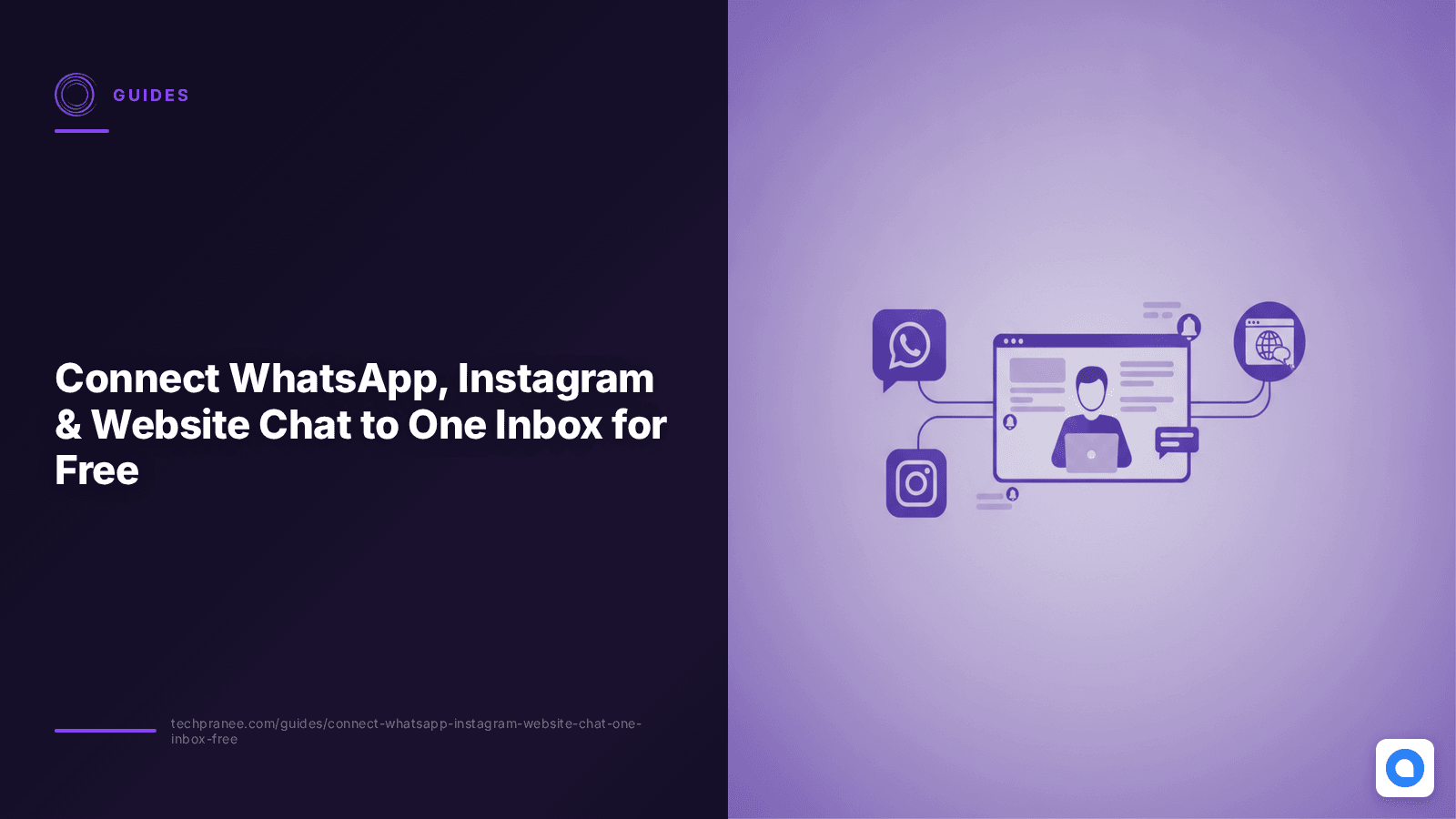
Connect WhatsApp, Instagram & Website Chat to One Inbox for Free
Here's a familiar scenario: A customer messages you on WhatsApp asking about your product. Another one DMs you on Instagram. A third uses the chat widget on your website. By the time you check each platform, two of them have already moved to a competitor.
This is the scattered inbox problem, and it kills small businesses. You lose leads, response times shoot up, and customers feel ignored.
The solution? A single shared inbox that pulls all your customer conversations — WhatsApp, Instagram, Facebook Messenger, and your website chat — into one screen. No more switching tabs. No more missed messages.
Tools like Intercom ($39/seat/month) and Zendesk ($55/seat/month) solve this, but they're expensive for small teams. Chatwoot does the same thing — for free.
What Is Chatwoot?
Chatwoot is an open-source customer support platform that brings all your customer conversations into one shared inbox. It's like Intercom or Zendesk, but:
- Free and open source (MIT license) — no per-seat pricing
- Self-hosted — your customer data stays on your server
- Omnichannel — WhatsApp, Instagram, Messenger, email, website chat, Telegram, and more
- Team collaboration — multiple agents, canned responses, conversation labels
- Auto-replies and bots — set up automated responses and AI agent integration
What You'll Need
- A VPS (Virtual Private Server) with at least 4 GB RAM — we recommend a $10-20/month VPS from Hostinger, DigitalOcean, or AWS Lightsail
- A domain name (e.g., chat.yourbusiness.com)
- About 30-45 minutes of setup time
- No coding skills required — just copy-paste commands
Step 1: Set Up Chatwoot on Your Server
Log into your VPS via SSH and run these commands:
Install Docker
apt-get update && apt-get upgrade -y
curl -fsSL https://get.docker.com -o get-docker.sh
sudo sh get-docker.sh
apt install docker-compose-plugin
Download Chatwoot Configuration Files
mkdir -p /opt/chatwoot
cd /opt/chatwoot
wget -O .env https://raw.githubusercontent.com/chatwoot/chatwoot/develop/.env.example
wget -O docker-compose.yaml https://raw.githubusercontent.com/chatwoot/chatwoot/develop/docker-compose.production.yaml
Configure Environment Variables
nano .envUpdate these key values:
SECRET_KEY_BASE— generate one withopenssl rand -hex 64POSTGRES_PASSWORD— set a strong passwordREDIS_PASSWORD— set a strong passwordFRONTEND_URL— set tohttps://chat.yourbusiness.com
Also update the same passwords in docker-compose.yaml to match.
Initialize the Database and Start
docker compose run --rm rails bundle exec rails db:chatwoot_prepare
docker compose up -d
Chatwoot is now running on port 3000. Verify with:
curl -I localhost:3000/apiSet Up Nginx and SSL
apt-get install nginx certbot python3-certbot-nginx -y

# Create Nginx config
cat > /etc/nginx/sites-enabled/chat.yourbusiness.com.conf << 'EOF'
server {
  server_name chat.yourbusiness.com;
  set $upstream 127.0.0.1:3000;
  underscores_in_headers on;
  location /.well-known {
    alias /var/www/ssl-proof/chatwoot/.well-known;
  }
  location / {
    proxy_pass http://$upstream;
    proxy_set_header Upgrade $http_upgrade;
    proxy_set_header Connection "upgrade";
    proxy_set_header Host $host;
    proxy_set_header X-Forwarded-Proto $scheme;
    proxy_set_header X-Real-IP $remote_addr;
    proxy_http_version 1.1;
    proxy_buffering off;
    client_max_body_size 0;
    proxy_read_timeout 36000s;
  }
  listen 80;
}
EOF

mkdir -p /var/www/ssl-proof/chatwoot/.well-known
nginx -t && systemctl reload nginx
certbot --webroot -w /var/www/ssl-proof/chatwoot/ -d chat.yourbusiness.com -i nginx
Visit https://chat.yourbusiness.com and create your admin account. You're now running Chatwoot.
Step 2: Connect WhatsApp Business API
WhatsApp is the most popular messaging channel for businesses. Here's how to connect it:
- Go to Settings → Inbox → Add Inbox in your Chatwoot dashboard
- Select WhatsApp as the channel
- Choose WhatsApp Cloud API (Meta's official API — easier to set up)
- Go to Meta for Developers and create a new app
- Add the WhatsApp product to your app
- Copy your Phone Number ID and Access Token from Meta
- Paste them into Chatwoot's WhatsApp configuration screen
- Verify your WhatsApp Business number
Once connected, all WhatsApp messages from customers will appear in your Chatwoot shared inbox. You and your team can reply from a single screen.
Cost Note
WhatsApp Cloud API is free for the first 1,000 conversations per month. After that, Meta charges $0.005-0.07 per conversation depending on the country. Chatwoot itself costs nothing — you only pay Meta's usage fees directly.
Step 3: Connect Instagram
- Go to Settings → Inbox → Add Inbox
- Select Instagram as the channel
- Authorize your Instagram Business account via Facebook Login
- Select the Instagram account you want to connect
- Configure auto-reply messages (optional)
Now, all Instagram DMs will appear in your Chatwoot inbox alongside WhatsApp messages. Your team can respond from the same screen.
Step 4: Connect Facebook Messenger
- Go to Settings → Inbox → Add Inbox
- Select Facebook as the channel
- Authorize with your Facebook account
- Select the Facebook Page you want to connect
- Configure welcome message (optional)
Step 5: Add a Website Chat Widget
- Go to Settings → Inbox → Add Inbox
- Select Website as the channel
- Fill in your website name and domain
- Choose widget color and position
- Copy the generated JavaScript snippet
- Paste it into your website's HTML (before the closing
</body>tag)
<script>
  window.chatwootSettings = { position: "right", type: "standard" };
  (function(d,t) {
    var BASE_URL = "https://chat.yourbusiness.com";
    var g = d.createElement(t), s = d.getElementsByTagName(t)[0];
    g.src = BASE_URL + "/packs/js/sdk.js";
    s.parentNode.insertBefore(g, s);
    g.onload = function() {
      window.chatwootSDK.run({ websiteToken: "YOUR_TOKEN", baseUrl: BASE_URL });
    };
  })(document, "script");
</script>
A floating chat bubble now appears on your website. Messages go straight to your Chatwoot inbox.
Step 6: Set Up Auto-Replies (Optional but Recommended)
Chatwoot lets you set up canned responses and automation rules so customers get instant replies even when you're sleeping:
- Go to Settings → Canned Responses and create templates for common questions
- Go to Settings → Automation Rules to set up auto-replies based on keywords
- For advanced automation, connect an AI agent using Chatwoot's Agent Bot API
What This Gives You
- All customer messages — WhatsApp, Instagram, Messenger, website chat — in one inbox
- Multiple team members can respond from the same screen
- Auto-replies for when you're offline
- Conversation labels and assignment to specific agents
- Analytics dashboard showing response times and resolution rates
- Zero per-seat costs — add as many agents as you want
- Your customer data stays on your server — no third-party access
Cost Comparison
| Solution | Monthly Cost (5 agents) | Per-Seat Pricing |
|---|---|---|
| Intercom | $195/month | Yes ($39/seat) |
| Zendesk | $275/month | Yes ($55/seat) |
| Freshdesk | $75-300/month | Yes ($15-60/seat) |
| Chatwoot (self-hosted) | ~$10-20 (VPS only) | No |
A 5-agent team saves $150-250 every month by self-hosting Chatwoot instead of paying for Intercom or Zendesk.
Too Complex? We Can Set This Up for You
If the technical setup feels overwhelming, we can do it for you. We'll:
- Install and configure Chatwoot on your server
- Connect WhatsApp, Instagram, Messenger, and your website chat
- Set up SSL, auto-replies, and team workflows
- Train your team on how to use it
One-time setup: $299 | Monthly managed: $99/month (we handle updates, backups, and troubleshooting)
Get started — book a free consultation
Frequently Asked Questions
Is Chatwoot really free?
Yes. Chatwoot is open-source under the MIT license. The software itself is free. You only pay for the VPS hosting ($10-20/month) and any WhatsApp API usage fees from Meta.
Do I need coding skills to set this up?
No. The setup involves copy-pasting commands into your server terminal. If you can follow a recipe, you can set up Chatwoot. The commands above are all you need.
Can I use Chatwoot for multiple businesses?
Yes. Chatwoot supports multiple accounts. You can create separate inboxes for different businesses or brands, each with their own channels and agents.
Is WhatsApp Business API free?
Meta's WhatsApp Cloud API includes 1,000 free service conversations per month. After that, pricing ranges from $0.005 to $0.07 per conversation depending on the country. You pay Meta directly — Chatwoot doesn't add any fees.
Can I connect an AI chatbot to Chatwoot?
Yes. Chatwoot has an Agent Bot API that lets you connect AI agents (like OpenAI GPT, Claude, or custom models) to automatically handle conversations. The bot can answer FAQs, collect information, and hand off to human agents when needed.
What happens if my server goes down?
If your VPS goes down, Chatwoot stops working temporarily. Messages sent during downtime may be queued by Meta and delivered when your server comes back online. We recommend using a reliable VPS provider with 99.9%+ uptime.
Can I migrate from Intercom or Zendesk to Chatwoot?
Yes, but there's no one-click migration tool. You'll typically export your contacts from Intercom/Zendesk and import them into Chatwoot. Conversation history migration requires custom scripting via Chatwoot's import API.
How many agents can I add?
Unlimited. Unlike Intercom and Zendesk which charge per seat, Chatwoot is self-hosted and has no per-seat limits. Add as many agents as your server can handle.
How TechPranee Can Help Your Organization Adopt AI
Setting up Chatwoot is just the beginning. If you're looking at open-source tools like this, you're likely thinking about how AI and automation can do more for your business — and that's exactly where TechPranee comes in.
As an AI consulting services company, we help organizations move from evaluating tools to deploying AI that drives real outcomes. Our AI consulting service packages are designed for businesses at every stage:
- AI Readiness Assessment ($5K–$15K) — We audit your current systems, data, and workflows to identify where AI will have the highest impact. You get a prioritized roadmap, not a generic report.
- AI Pilot Implementation ($25K–$75K) — We build and deploy a focused AI solution — like adding an AI agent to your Chatwoot inbox that auto-resolves common customer queries, triages conversations, and escalates only what needs human attention.
- Enterprise AI Rollout ($75K–$250K+) — We integrate AI across your operations — customer support, workflow automation, document processing, and decision support — with full MLOps and change management.
- Managed AI Services ($5K–$20K/month) — Ongoing optimization, monitoring, and expansion of your AI systems as your business grows.
Whether you want to enhance a self-hosted Chatwoot with AI-powered conversation routing, or you need a full AI strategy consulting engagement to transform your operations, we build around your stack — not the other way around. Book a free strategy call to discuss your AI roadmap.